

Having duplicate files scattered across your Mac can take up precious storage space and lead to disorganization. Fortunately, there are several ways to locate and eliminate these redundant files, whether you prefer using the native Finder, Terminal, or a third-party cleaning app like Cleaner One Pro. In this article, we’ll explore three effective methods to help you reclaim disk space and declutter your Mac.
Why Duplicate Files Build Up on Mac
Duplicates accumulate for several everyday reasons:
- Downloading the same file multiple times from email, browsers, or websites
- Importing photos and videos repeatedly from iPhone, cameras, or external drives
- iCloud Drive, Time Machine, and other backup/sync services creating extra copies
- Apps automatically saving multiple versions during editing or updates
Left unchecked, these files waste storage, reduce available space for new projects, and can indirectly affect system speed.
Find and Delete Duplicate Files with Smart Folder
Create a New Smart Folder: In the Finder sidebar, click the “+” icon and select “New Smart Folder.”

Set Search Criteria: In the search bar, choose “Kind” and set it to “Files.” Then, add another criteria by clicking the “+” button and selecting “File size.” Choose “is equal to” from the dropdown menu and enter “0 bytes” (to exclude empty files).

- Duplicate Detective: Now comes the clever part. Click the “+” button again and select “Other.” A menu will appear. Scroll down and choose “Duplicate.” This hidden gem instructs the Smart Folder to identify files with the same content, regardless of their names.
- Refine Your Search (Optional): You can further refine your search by specifying locations (e.g., your Downloads folder) or file types (e.g., images). Click the “+” button and add the desired criteria.
- Review and Remove: The Smart Folder will display all identified duplicates. Carefully review the files before deleting them to ensure you’re not discarding important copies. To delete, simply select the unwanted duplicates and drag them to the Trash.
Find and Remove Duplicate Files with Terminal
For the technically inclined, the Terminal offers a powerful way to find duplicates using the find command. Here’s a breakdown (caution: proceed with care as incorrect commands can lead to data loss):
- Open Terminal: Command+Space to launch Spotlight.
- Change Directory: Type Terminal **to run Terminal Application.
- Locate Duplicates: Type **cd ~/Folder Name to navigate to the folder you want to scan. For example, you can type cd ~/Downloads and hit return to move to the Downloads directory.
- Manual Deletion: Copy and paste the following command lines and hit enter.
find . ! -type d -exec cksum {} \; | sort | tee /tmp/f.tmp | cut -f 1,2 -d ‘ ‘ | uniq -d | grep -hif – /tmp/f.tmp > duplicates.txt
The command lines will generate a text file to the folder you’ve specified.
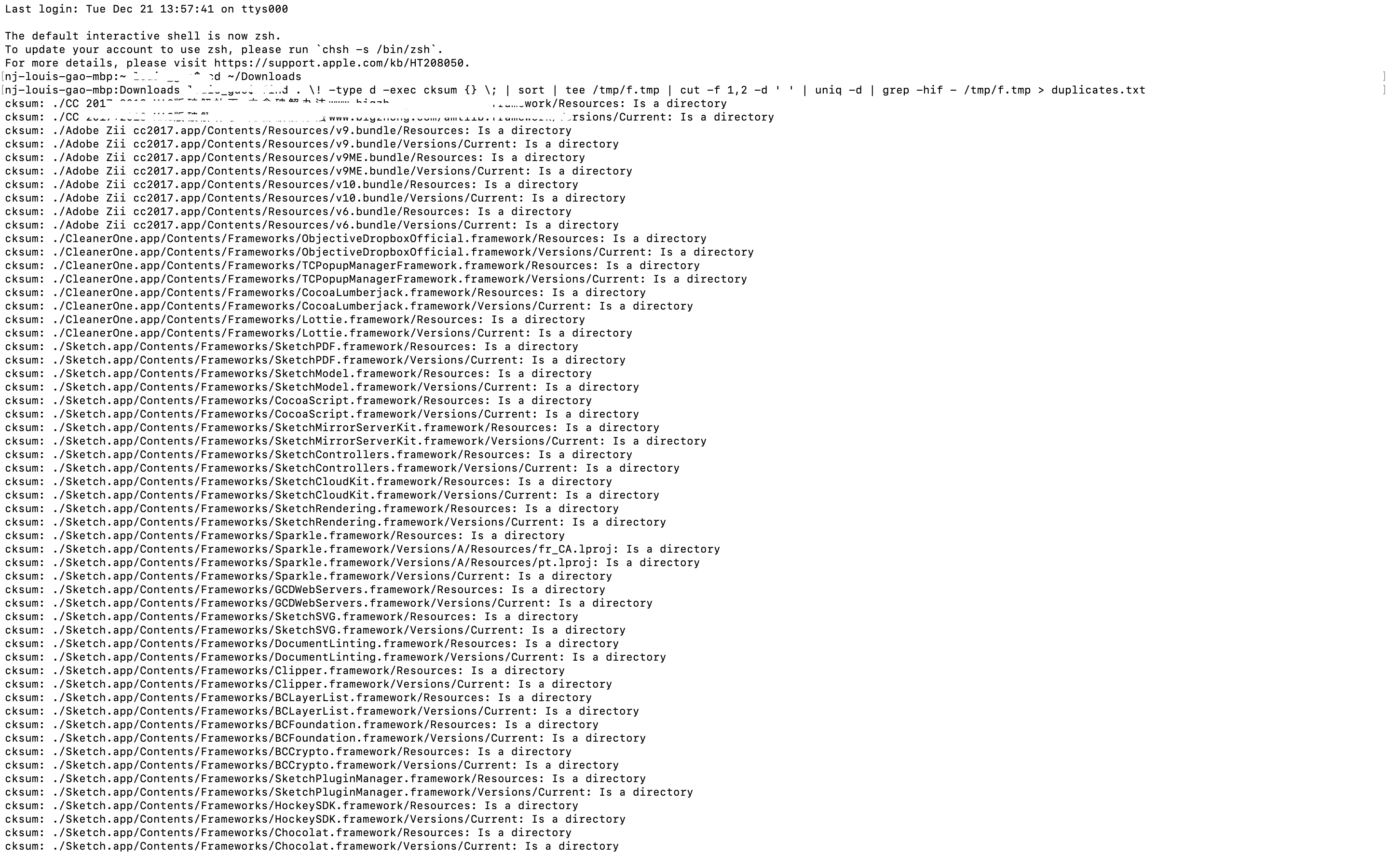
Note:
1. The text file only list all the duplicate files path names, so the list might be rather long.
2. If you want to delete those files, you will need to manually navigate to those files and manually delete them.
3. Keep in mind that only if you are familiar with the command lines, otherwise you might meet some issues with your Mac.

Delete Duplicates with One Click
Although Smart Folder can be very helpful, it still requires you to have a general picture of what kinds of duplicate files exist on your Mac. However, most of the time, we cannot remember the exact files that have been duplicated. If you want to find and delete duplicate files effectively, it is better to use a third-party app.
Cleaner One Pro is an all-in-one tool for Mac cleaning and performance optimization. The Duplicate Files feature will scan and find duplicate files in your selected folders automatically, saving you time from searching Smart Folder manually.

After the scan, it offers a preview of the duplicate files so you can check again before deleting.

With other strong features such as Smart Scan, Junk Files, and real-time monitoring for your CPU and Network usage, Cleaner One Pro will make sure your Mac is always at its best performance.
How to Remove Duplicate Files Safely
- Always preview – Never delete without checking content.
- Keep the best version – Prefer the most recent or highest-quality file.
- Move to Trash first – Avoid permanent deletion until you’ve verified everything.
- Empty Trash only after a day or two of normal use.
- Use apps like Cleaner One Pro for safe bulk removal with undo options.
How to Remove Duplicate Photos on Mac
Photos app has built-in help:
- Open the Photos app.
- Go to the Duplicates album (available in macOS Ventura and later).
- Use the Merge feature to combine duplicates while keeping the best version.
- For older macOS versions, use Smart Folders or Cleaner One Pro’s duplicate photo scanner.
Tips to Prevent Duplicate Files in the Future
- Organize your Downloads folder weekly.
- Disable automatic duplicate imports in Photos settings.
- Use iCloud Drive or Google Drive carefully — turn off “Optimize Mac Storage” if it causes extra copies.
- Adopt a consistent file naming convention.
- Regularly run a quick scan with Cleaner One Pro.
Common Mistakes to Avoid
- Deleting system files or app-related duplicates without knowledge.
- Bulk deleting without previewing.
- Using free/untrusted duplicate finders that may contain malware.
- Permanently deleting files immediately instead of using Trash.
FAQs
Q1: Does Mac have a built-in duplicate file remover?
A1: No dedicated tool, but Finder Smart Folders and the Photos Duplicates album provide solid built-in options.
Q2: Are duplicate file finder apps safe?
A2: Yes, reputable apps like Cleaner One Pro are safe and widely used. Always download from the official Mac App Store or developer website.
Q3: Will deleting duplicates speed up my Mac?
A3: Indirectly yes. Freeing up storage improves overall responsiveness, app launch times, and makes room for macOS updates.
Q4: Can I recover deleted duplicates?
A4: Yes — as long as you haven’t emptied the Trash. You can also use Time Machine backups for recovery.
By following these methods, you can efficiently clean up duplicate files on your Mac and maintain a faster, more organized system. For the quickest and safest results, try Cleaner One Pro — its automated duplicate finder saves hours compared to manual methods. Start reclaiming your storage space today!


Amazing blog. Thank you for this information on duplicate file finder software. These files consume a lot of space in my mobile and PCs. Your blog will definitely help many of us.
There are many special programs for removing duplicate files. I am using Duplicate Finder from Manyprog. It is very easy to use.